

Best Work From Home Monitor Setup (Complete Guide)
Working from home sounds simple. But after a few hours, your neck starts hurting, your eyes feel tired, and your focus drops.
That’s where the best work from home monitor setup makes a big difference.
A good setup is not just about looks. It helps you sit better, work faster, and feel less tired. Whether you write, design, code, or attend meetings all day, your monitor setup shapes your entire work experience.
In this guide, you’ll learn how to build the best work from home monitor setup step by step. Simple tips. Real benefits. No confusion.
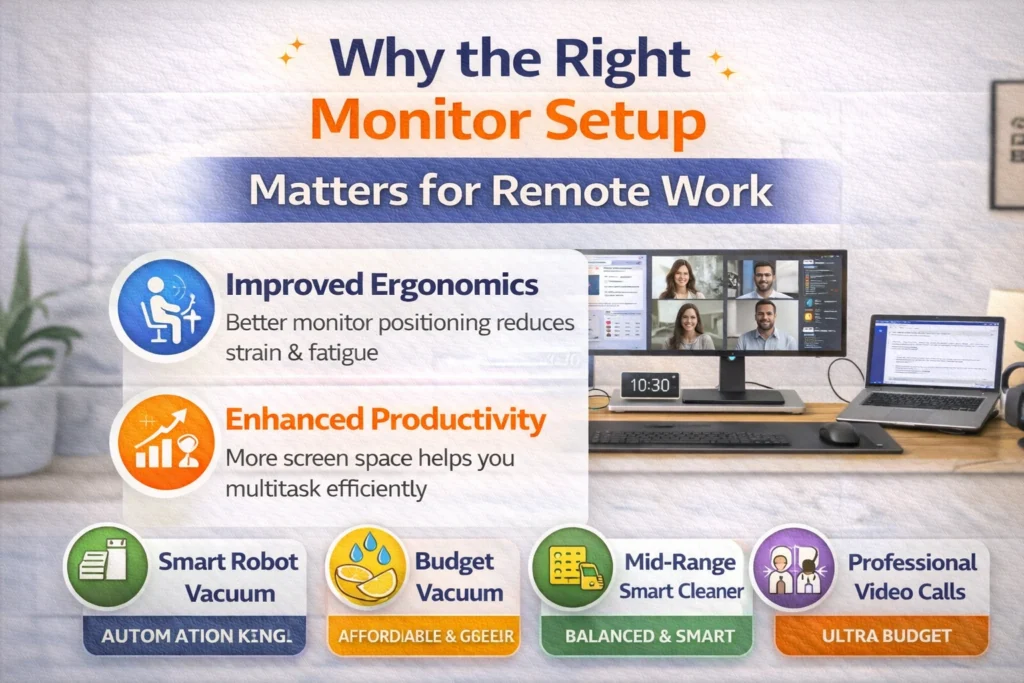
Why the Right Monitor Setup Matters for Remote Work
Many people ignore their desk setup. They just place a laptop or monitor and start working.
But small mistakes can lead to big problems.
A poor setup can cause:
- Neck and back pain
- Eye strain and headaches
- Low energy and focus
- Poor posture over time
On the other hand, the best work from home monitor setup helps you:
- Sit comfortably for long hours
- Reduce eye stress
- Stay focused longer
- Work more efficiently
Think of your setup as your daily workspace engine. If it’s not right, everything feels harder.
You can read also : 15 Powerful Desk Setup Ideas for Minimal Setup
Best Work From Home Monitor Setup: Core Principles to Follow
Before you buy anything, you need to understand the basics.
A great setup always follows three simple rules. If you get these right, almost everything else falls into place. You don’t need the most expensive monitor or a fancy desk. You just need a setup that works with your body, not against it.
The best work from home monitor setup is built on three core principles: ergonomics, visibility, and workflow. These ideas are also key in many work from home monitor setup ideas and even a smart budget monitor setup for remote workers. Let’s break them down in a simple way.
Ergonomics Comes First
Your body should feel relaxed while working.
- Keep your back straight
- Shoulders relaxed
- Wrists in a natural position
An best work from home monitor setup for remote work helps prevent long-term pain.
Screen Visibility & Lighting
Your screen should be easy to see.
- Avoid glare from windows
- Use soft lighting
- Adjust brightness properly
Too much brightness or reflection can hurt your eyes quickly.
Workflow Optimization
Your setup should help you work faster.
- Keep important windows easy to access
- Avoid constant switching
- Keep desk clutter-free
A clean setup improves focus more than you think.
You can read also : 10 Best Time Saving Cleaning Tools That Actually Work
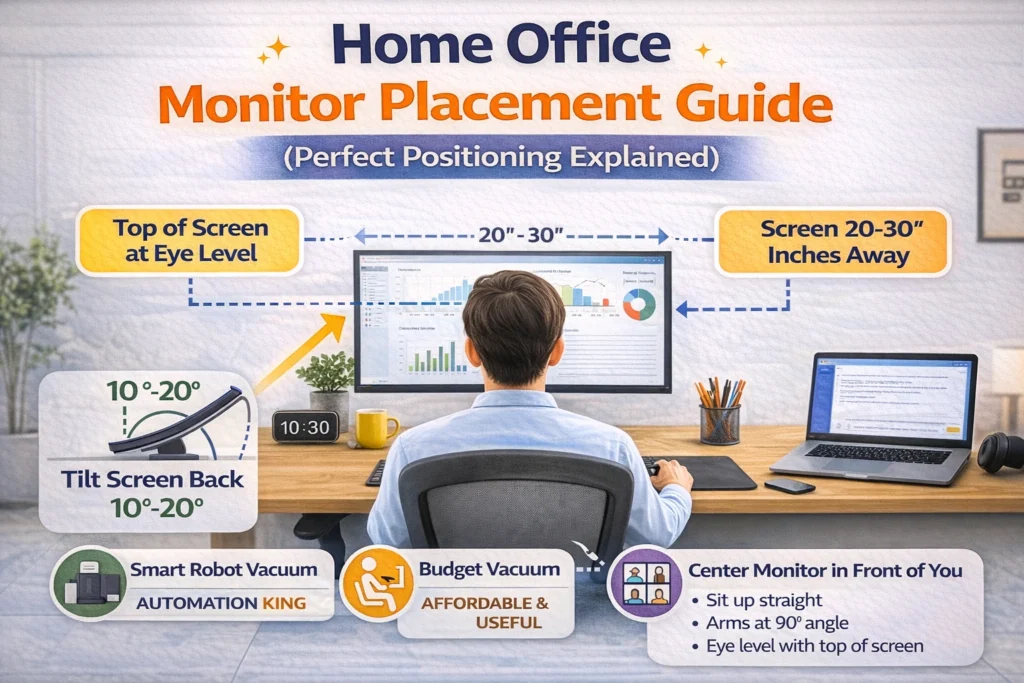
Home Office Monitor Placement Guide (Perfect Positioning Explained)
This is one of the most important parts of the best work from home monitor setup.
Even a good monitor can feel bad if placed wrong. You could spend hundreds on a high-quality screen, but if it sits too low, too close, or at the wrong angle, your body will feel the strain within a few hours.
A smart home office monitor placement guide is not about guesswork. It’s about small adjustments that make a big difference in comfort, focus, and long-term health.
Let’s break it down in a simple, practical way.
Ideal Monitor Height (Keep It at Eye Level)
Your monitor height matters more than you think.
The top of your screen should be at, or slightly below, your eye level. This keeps your neck in a natural position and supports a proper home office monitor placement guide.
If your monitor is too low, you’ll keep looking down all day. That leads to:
- Neck pain
- Rounded shoulders
- Poor posture
If it’s too high, you’ll tilt your head up, which can feel just as uncomfortable.
Simple fix:
- Sit straight in your chair
- Look forward naturally
- The top edge of your screen should align with your eyes
If needed, use:
- A monitor stand
- Books (yes, even this works)
- Adjustable monitor arms
This one change alone can upgrade your entire best work from home monitor setup and improve your overall comfort instantly.
Best Viewing Distance (Not Too Close, Not Too Far)
Now let’s talk about distance.
Your monitor should sit about an arm’s length away from your eyes. This is the sweet spot for most people.
Too close, and your eyes work harder. Too far, and you start leaning forward without even realizing it.
Here’s a quick guide:
- 21–24 inch monitor → about 20–24 inches away
- 27 inch monitor → about 24–30 inches away
- Ultrawide monitors → slightly farther
A good rule?
If you can touch your screen by fully extending your arm, you’re in the right zone.
This small adjustment reduces eye strain and helps you stay relaxed during long work sessions.
Monitor Angle & Tilt (Small Detail, Big Impact)
Most people ignore this—but they shouldn’t.
Your monitor should be slightly tilted back, around 10 to 20 degrees. This helps reduce glare and keeps your viewing angle natural.
If your screen is perfectly straight or tilted forward, it can cause:
- Light reflections
- Eye discomfort
- Poor visibility
Also, position your monitor directly in front of you. Avoid placing it to the side unless you’re using a dual setup.
Avoid Glare and Bad Lighting
Lighting can make or break your setup.
Even the best work from home monitor setup won’t feel right if your screen has constant glare.
Here’s what to avoid:
- Placing your monitor directly in front of a window
- Sitting with bright light behind the screen
- Using harsh overhead lighting
Instead, aim for:
- Soft, indirect lighting
- Natural light from the side
- A desk lamp for balance
This makes your screen easier to look at and reduces eye fatigue over time.
Dual Monitor Placement (If You Use Two Screens)
If you’re using a dual monitor setup for home office productivity, placement becomes even more important.
You have two main options:
1. Side-by-side (Most Common)
- Keep your primary screen directly in front
- Place the second screen slightly angled
2. Centered Dual Setup
- Both monitors angled inward
- Good for equal usage of both screens
Avoid turning your neck too much. Your goal is to move your eyes more than your head.
Quick Placement Checklist
Before you start working, run through this quick checklist:
No glare or harsh light ✔
Monitor at eye level ✔
About an arm’s length away ✔
Slight backward tilt ✔
Centered in front of you ✔
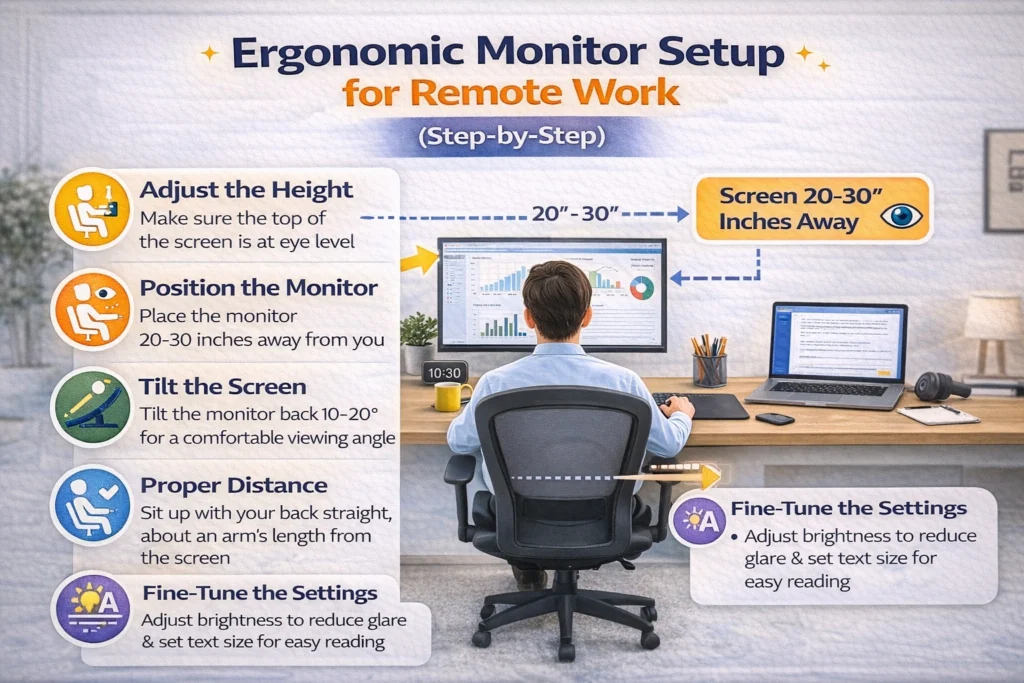
Ergonomic Monitor Setup for Remote Work (Step-by-Step)
Let’s make this simple and practical.
You don’t need a complicated system or expensive gear to feel comfortable while working from home. A few small adjustments can completely change how your body feels after a long day.
Follow these steps to create an ergonomic monitor setup for remote work that actually works in real life—not just on paper.
Step 1: Adjust Your Chair (Start with Your Body, Not the Screen)
Most people jump straight to adjusting the monitor. That’s a mistake.
Your body position comes first. Your monitor should adapt to you—not the other way around.
Here’s how to set your chair correctly:
- Feet flat on the floor (not hanging)
- Knees at a 90-degree angle
- Hips slightly higher than knees (if possible)
- Back fully supported by the chair
If your chair is too high, use a footrest. Too low? Raise it until your posture feels natural.
A stable sitting position makes everything else easier to fix.
Step 2: Position Your Monitor (The Heart of the Setup)
Now that your body is set, adjust your screen.
Your monitor should feel like it’s “meeting your eyes,” not forcing you to move.
Follow these simple rules:
- Place the screen at eye level
- Keep it about an arm’s length away
- Position it directly in front of you
If you find yourself leaning forward or looking down, something is off.
This is where most people go wrong. Fixing this step alone can instantly upgrade your best work from home monitor setup.
Step 3: Align Keyboard and Mouse (Small Detail, Big Relief)
This part often gets ignored—but it matters a lot.
If your keyboard and mouse are placed poorly, your wrists and shoulders take the hit.
Here’s what to do:
- Keep them close to your body
- Maintain straight, neutral wrists
- Keep elbows relaxed and near your sides
Avoid reaching forward or stretching your arms too much. That tension builds up quickly over time.
A relaxed arm position helps you work longer without discomfort.
Step 4: Fix Your Lighting (Easy on the Eyes)
Lighting is one of those things you don’t notice—until it starts bothering you.
Bad lighting can cause:
- Eye strain
- Headaches
- Constant fatigue
Keep it simple:
- Avoid harsh overhead lights
- Use a soft desk lamp for balance
- Match your screen brightness with your room lighting
Natural light is great, but don’t let it hit your screen directly. Side lighting works best.
A well-lit space supports the home office monitor placement guide and makes your setup feel comfortable all day.
Quick Ergonomic Checklist
Before you start your workday, take 10 seconds to check this:
✔ Feet flat on the floor
✔ Back straight and supported
✔ Screen at eye level
✔ Wrists in a neutral position
✔ No glare on the screen
You don’t need to fix everything at once. Small changes here create the best work from home monitor setup over time.
Start small. Adjust one thing today. Maybe your chair. Tomorrow, fix your monitor height.
Over time, these small changes build the best work from home monitor setup—one that feels natural, comfortable, and easy to maintain every single day.
Single vs Dual Monitor Setup: What’s Better for You?
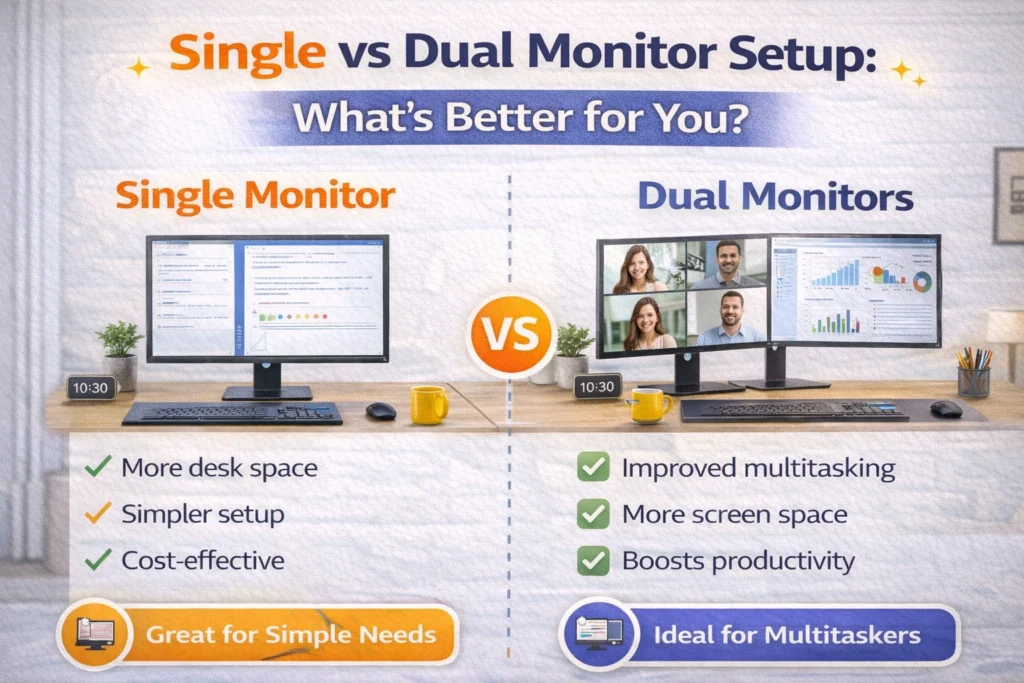
This is a common question—and honestly, there’s no one-size-fits-all answer.
The right choice depends on how you work, how much space you have, and how often you multitask. Some people thrive with a clean, single-screen setup. Others can’t imagine working without two screens open at once.
When choosing the best work from home monitor setup, it helps to explore different work from home monitor setup ideas and understand what actually fits your daily routine.
Let’s break it down in a simple, practical way so you can decide what fits your workflow best.
Single Monitor Setup (Simple and Focused)
A single monitor setup is all about simplicity.
If you like a clean desk and fewer distractions, this setup can feel just right. It’s also the easiest way to build a budget monitor setup for remote workers without sacrificing comfort.
Best for:
- Minimalists
- Small desks or tight spaces
- Budget setups
- People who focus on one task at a time
Pros:
- Less distraction, more focus
- Clean and aesthetic workspace
- Affordable and easy to set up
- Requires less desk space
Cons:
- Limited multitasking
- Frequent tab switching
- Can slow down workflow for complex tasks
That said, a single monitor can still be powerful if used smartly. Features like split-screen (side-by-side apps) can help you get more done without needing extra hardware.
Dual Monitor Setup for Home Office Productivity (The Multitasking Boost)
If your work involves juggling multiple tasks, this is where things get interesting.
A dual monitor setup for home office productivity gives you more room to think, work, and move between tasks without breaking your flow.
Instead of constantly switching tabs, you can keep everything visible.
Best for:
- Writers and content creators
- Programmers and developers
- Designers and editors
- Remote professionals handling multiple tools
Benefits:
- Work on two (or more) apps at the same time
- Faster workflow with fewer interruptions
- Better organization of tasks
- Reduced mental fatigue from constant switching
For example, you can:
- Write on one screen and research on the other
- Keep meetings open on one monitor and notes on the second
- Edit content while previewing it live
Just make sure your placement follows a proper home office monitor placement guide so you’re not turning your neck too much.
Ultrawide Monitor Alternative (Clean but Powerful)
Not a fan of two separate screens? There’s a middle ground.
An ultrawide monitor gives you a large, seamless workspace without the bezels (the borders between screens). It’s like having two monitors merged into one.
Pros:
- Smooth, uninterrupted screen experience
- No gap between displays
- Less cable clutter
- Great for creative work and timelines
Cons:
- More expensive than standard monitors
- Needs a wider desk
- Can take time to get used to
Ultrawide monitors work really well for people who want both aesthetics and performance in their best work from home monitor setup.
So, Which One Should You Choose?
Here’s a quick way to decide:
- Go for single monitor if you prefer simplicity and focus
- Choose dual monitors if you multitask heavily
- Pick an ultrawide if you want a clean, all-in-one solution
At the end of the day, the best work from home monitor setup is the one that fits your daily work style—not just what looks good on Instagram.
Start with what you need. You can always upgrade later.
Work From Home Monitor Setup Ideas (Aesthetic + Functional)
Let’s be honest—if your desk looks good, you feel better working at it.
The best work from home monitor setup isn’t just about comfort and productivity. It should also feel inviting. A space you actually want to sit in every day.
Here are some simple, practical work from home monitor setup ideas that balance both style and function.
Minimal Clean Desk Setup (Calm, Distraction-Free)
This setup is all about clarity.
No clutter. No noise. Just a clean space where your mind can focus.
Key elements:
- White, black, or neutral color tones
- Hidden or well-managed cables
- Single monitor setup
- Minimal desk accessories
This style works great if you get distracted easily or prefer a calm, focused environment.
Why it works:
- Reduces visual stress
- Helps you stay focused longer
- Makes your desk feel open and organized
It’s simple—but powerful. Sometimes less really is more.
Productivity-Focused Setup (Built for Getting Things Done)
If your work involves juggling multiple tasks, this setup is designed for speed and efficiency.
Think function first, then style. This approach is a key part of the best work from home monitor setup, especially when productivity is your top priority.
Key elements:
- Dual monitors for multitasking
- Organized screen layout (main + secondary tasks)
- Easy access to tools and accessories
- Clean but functional desk arrangement
This setup pairs perfectly with a dual monitor setup for home office productivity, and it also aligns well with smart work from home monitor setup ideas, especially if you switch between apps often.
Why it works:
- Saves time by reducing tab switching
- Keeps your workflow smooth
- Helps you stay in “deep work” mode
It may not look minimal—but it gets serious work done.
Cozy & Creative Setup (Warm, Personal, Inspiring)
Now this is where things get a bit more personal.
A cozy setup adds warmth and personality to your workspace. It’s perfect if you spend long hours at your desk and want it to feel less “office-like.”
Key elements:
- Warm lighting (desk lamps or LED lights)
- Indoor plants for a natural touch
- Personal décor (frames, art, small objects)
- Soft textures and colors
This setup fits beautifully with an ergonomic monitor setup for remote work, especially when combined with comfortable seating and proper lighting.
Why it works:
- Makes long work hours feel less tiring
- Boosts mood and creativity
- Creates a space you enjoy being in
Pro Tip: Mix Style with Function
You don’t have to pick just one style.
A lot of the best work from home monitor setup designs are actually a mix:
- Clean base + cozy lighting
- Minimal desk + dual monitors
- Functional layout + personal touch
Start with what you need for work. Then slowly add elements that make the space feel like yours.
Because at the end of the day, the best setup isn’t just efficient—it feels right the moment you sit down.
Budget Monitor Setup for Remote Workers (Smart & Affordable)
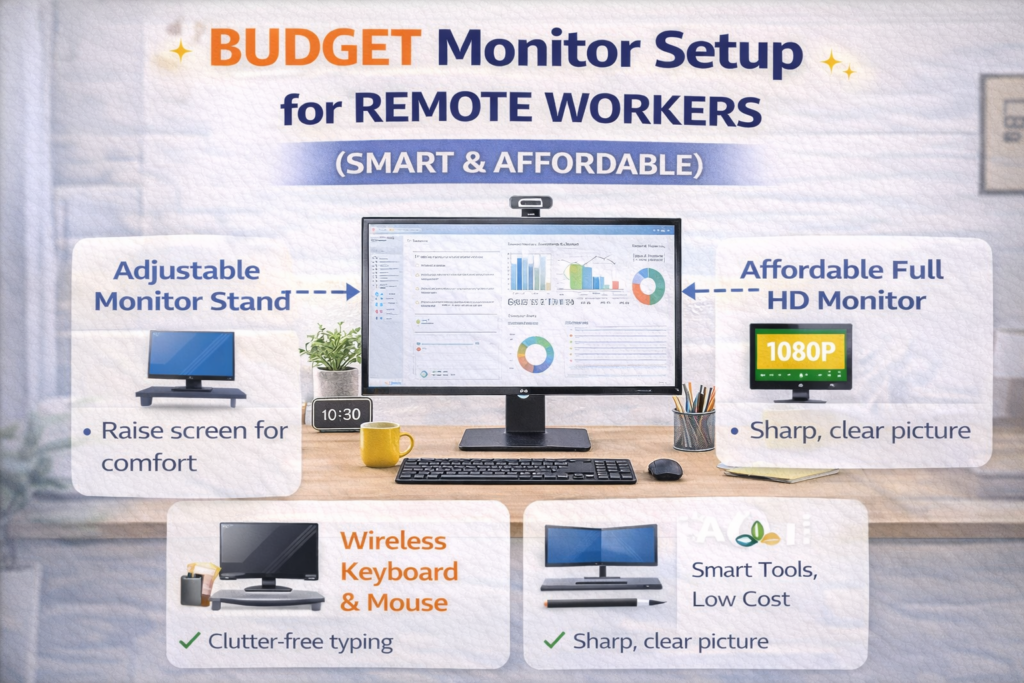
You don’t need a big budget to build the best work from home monitor setup.
In fact, some of the most comfortable and productive setups are built with simple, affordable choices. It’s not about spending more—it’s about spending smart.
Here’s how to keep things practical without cutting corners.
Budget Monitor Options (What to Actually Buy)
You don’t need a high-end display to get a great experience.
For most remote workers, a good 24-inch monitor is more than enough. It gives you enough screen space without taking over your desk.
What to look for:
- 24-inch monitors → affordable, practical, and widely available
- IPS panels → better colors and wider viewing angles
- Full HD (1080p) → sharp enough for daily work
- Adjustable stand (if possible) → helps with ergonomics
If your budget allows a bit more, a 27-inch monitor can give you extra space. But for most people, 24-inch hits the sweet spot.
Affordable Accessories That Actually Matter
This is where small investments make a big impact.
You don’t need a fancy setup, but a few basic tools can instantly improve comfort and usability.
Start with these:
- Monitor stand or riser (for proper height)
- Basic desk lamp (for better lighting)
- Cable organizers (to reduce clutter)
- External keyboard and mouse (optional but helpful)
These upgrades support both comfort and productivity, and they align perfectly with an ergonomic monitor setup for remote work.
Even simple changes—like raising your screen or improving lighting—can transform your daily experience.
Smart Ways to Save Money (Without Compromising Quality)
You don’t have to buy everything at once.
A smart budget monitor setup for remote workers is built step by step.
Try this:
- Use books or boxes as a monitor riser
- Reuse your existing desk and chair
- Start with one monitor, upgrade later if needed
- Buy essential items first, extras later
This approach helps you avoid unnecessary spending while still building a setup that works.
Real Talk: Budget Doesn’t Mean Basic
A lot of people think “budget” means low quality. That’s not true.
If your monitor is at the right height, your lighting feels comfortable, and your desk is organized—you already have a strong setup.
The best work from home monitor setup is not about how much you spend. It’s about how well everything fits together.
Start simple. Improve slowly. And before you know it, your setup will feel just as good as the expensive ones—maybe even better.
Must-Have Accessories for the Best Setup
If you want to upgrade your setup, start here.
You don’t need dozens of gadgets. Just a few smart accessories can make your workspace feel more comfortable, organized, and efficient. These small upgrades can quickly turn a basic desk into the best work from home monitor setup.
Monitor Arm or Stand
This is one of the easiest upgrades you can make.
A monitor arm or stand helps you position your screen at the perfect height and angle. It also frees up desk space, making your setup look cleaner.
Why it matters:
- Improves posture instantly
- Reduces neck and shoulder strain
- Creates more usable desk space
External Keyboard and Mouse
If you’re using a laptop, this is a must.
An external keyboard and mouse allow you to place your monitor at the correct height without compromising hand position.
Benefits:
- Keeps wrists in a neutral position
- Makes typing more comfortable
- Improves overall workflow
Blue Light Filter
Staring at screens all day can be tough on your eyes.
A blue light filter (or built-in night mode) reduces eye strain, especially in the evening.
Why you should use it:
- Helps reduce eye fatigue
- May improve sleep quality
- Makes long work sessions easier
Anti-Glare Screen
Glare can ruin even the best setup.
An anti-glare screen helps reduce reflections from windows or lights, making your screen easier to see.
Best for:
- Bright rooms
- Workspaces near windows
- Long hours of screen time
Desk Lighting
Good lighting changes everything.
A simple desk lamp can balance your lighting and reduce strain on your eyes. It also adds a nice aesthetic touch to your setup.
What to look for:
- Soft, adjustable brightness
- Warm or neutral light tones
- Positioning that avoids direct glare on your screen
These tools help you create the best work from home monitor setup faster.
You don’t need to buy everything at once.
Start with one or two essentials, then upgrade slowly. Even small changes can make a big difference over time.
Common Monitor Setup Mistakes to Avoid
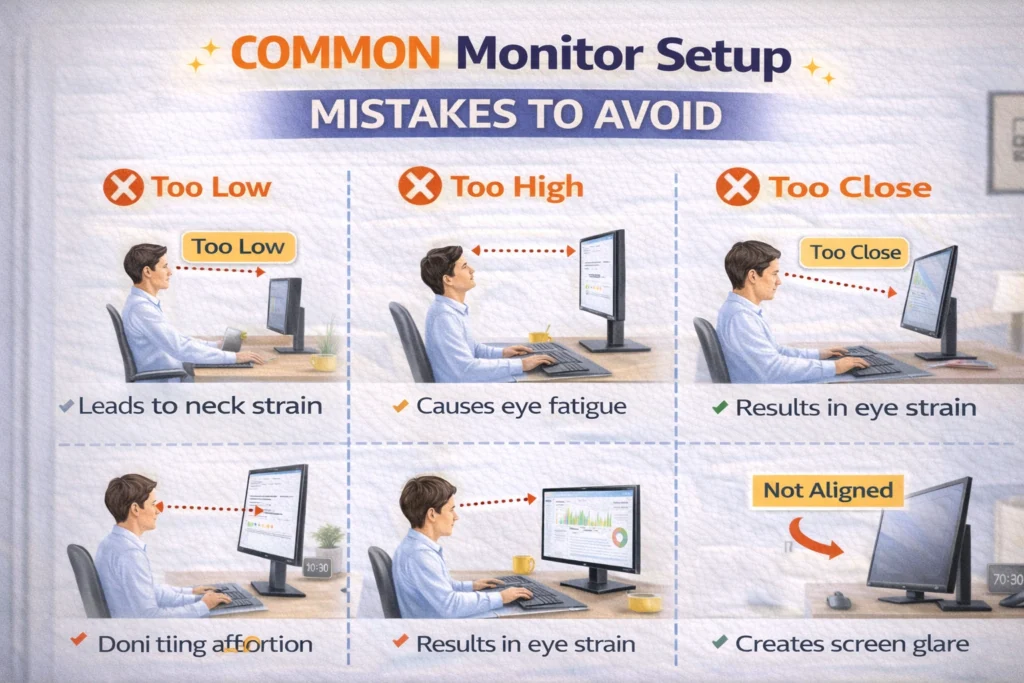
Even small mistakes can ruin your setup.
You might have a good monitor, a decent desk, and still feel uncomfortable after a few hours. That usually comes down to simple mistakes people don’t notice at first.
If you want the best work from home monitor setup, avoiding these common issues is just as important as setting things up correctly.
Monitor Too Low or Too High
This is the most common mistake.
If your monitor is too low, you’ll keep looking down all day. Too high, and your neck tilts upward. Both lead to discomfort over time.
Fix it:
- Keep the top of your screen at eye level
- Use a stand or books to adjust height
This small change can instantly improve your ergonomic monitor setup for remote work.
Sitting Too Close to the Screen
Many people sit much closer than they should.
This puts extra strain on your eyes and can cause headaches or fatigue.
Fix it:
- Keep your monitor about an arm’s length away
- Adjust based on screen size
Following a proper home office monitor placement guide helps you find the right distance easily.
Poor Lighting Conditions
Bad lighting can make even a perfect setup feel uncomfortable.
Glare, reflections, or very dim light all affect your eyes.
Fix it:
- Avoid placing your screen directly in front of a window
- Use soft, balanced lighting
- Adjust brightness based on your room
Good lighting is a key part of the best work from home monitor setup, especially if you work long hours.
Ignoring Ergonomics
A lot of people focus only on the screen and forget their posture.
But your chair, desk, and body position all matter just as much.
Fix it:
- Keep your back supported
- Feet flat on the floor
- Wrists in a neutral position
A proper ergonomic monitor setup for remote work reduces long-term strain and keeps you comfortable.
Cluttered Desk
A messy desk doesn’t just look bad—it affects how you work.
Too many items can distract you and make your setup feel stressful.
Fix it:
- Keep only essential items on your desk
- Use cable organizers
- Maintain a clean, simple layout
This also improves your overall workflow and supports the best work from home monitor setup.
Pro Tips to Improve Your Setup Instantly
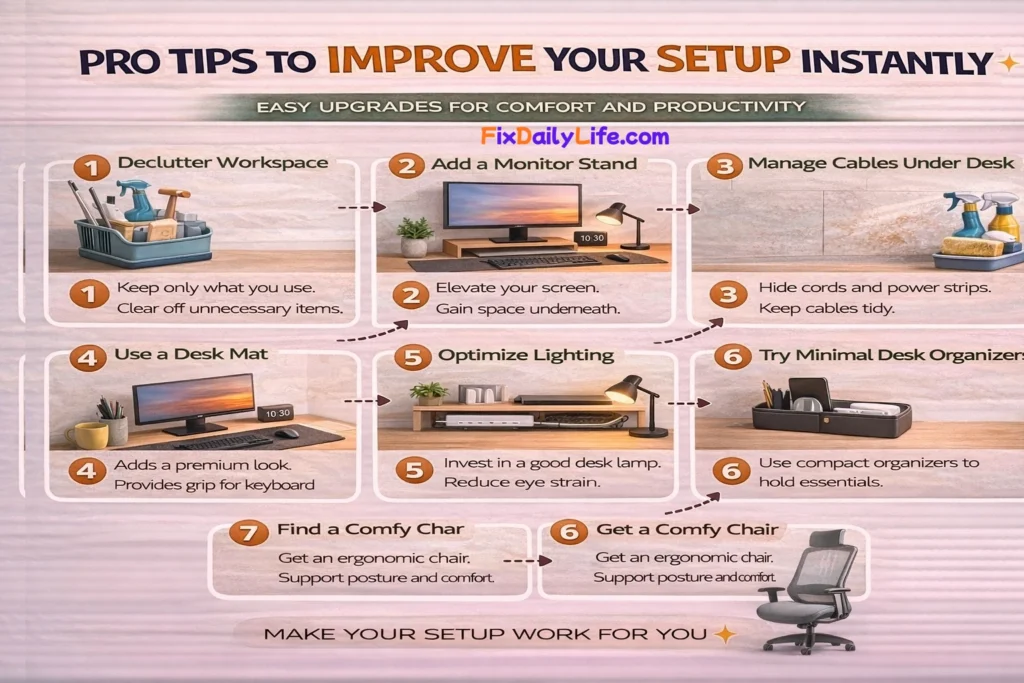
Want quick results? Try these.
You don’t always need a big upgrade to feel the difference. A few small habits can quickly improve your comfort, focus, and overall experience. In fact, these simple changes can take your setup much closer to the best work from home monitor setup without spending anything.
Follow the 20-20-20 Rule
This is one of the easiest ways to reduce eye strain.
Every 20 minutes, look at something 20 feet away for at least 20 seconds.
Why it works:
- Relaxes your eye muscles
- Reduces fatigue from screen time
- Helps you stay focused longer
This habit supports both your eye health and your ergonomic monitor setup for remote work.
Adjust Brightness Based on Room Light
Your screen should never feel too bright or too dim.
If your monitor brightness doesn’t match your room lighting, your eyes have to work harder.
Quick tip:
- Bright room → increase screen brightness
- Dim room → lower brightness
This simple adjustment is often overlooked in a proper home office monitor placement guide, but it makes a big difference.
Use Dark Mode at Night
If you work in the evening, dark mode can be a game changer.
It reduces glare and makes your screen easier on the eyes in low-light conditions.
Benefits:
- Less eye strain at night
- More comfortable viewing
- Better for long sessions
It’s a small tweak that fits perfectly into the best work from home monitor setup.
Take Short Posture Breaks
Even with a perfect setup, sitting too long isn’t ideal.
Your body needs movement.
Try this:
- Stand up every 30–60 minutes
- Stretch your shoulders and neck
- Walk around for a minute or two
These breaks support your posture and improve circulation, making your best work from home monitor setup more effective over time.est work from home monitor setup.
FAQs About Work From Home Monitor Setup
What is the ideal monitor height?
At or slightly below eye level.
Is a dual monitor setup worth it?
Yes, if you multitask or work with multiple apps.
How far should a monitor be?
About an arm’s length away.
What monitor size is best?
24–27 inches is ideal for most users.
Conclusion: Build Your Best Work From Home Monitor Setup
The truth is simple.
You don’t need a fancy desk or expensive gear. You just need the right setup. The best work from home monitor setup is not about trends or aesthetics—it’s about how well your space supports your body and your daily work.
At the end of the day, the best work from home monitor setup is one that:
- Keeps you comfortable
- Helps you stay focused
- Fits your natural workflow
Whether you follow a proper home office monitor placement guide or improve your ergonomic monitor setup for remote work, small adjustments can make a huge difference.
Start small. Fix your monitor height. Adjust your chair. Improve your lighting.
You don’t have to do everything at once.
Over time, these small changes will completely transform how you work—making your setup more efficient, more comfortable, and much easier to maintain every single day.
✅ Call to Action (CTA)
If you found this guide helpful, start upgrading your setup today.
Even one small change can make your workday easier.
And if you want more ideas, check out our guide on Desk Setup Ideas to build a clean and productive workspace
